- Home Assistant Connect ZBT-2
- Pre-Requisites
- Docker Compose
- Add Home Assistant Integrations
- Add Matter Devices via Home Assistant App
- Extra Credit
- Troubleshooting
- Factory Reset
- References
Home Assistant Connect ZBT-2
Instead of using a hub like the IKEA DIRIGERA to communicate with Matter/Thread home-automation devices, I went with the open-source route and purchased a Home Assistant Connect ZBT-2.
Firmware Installation
- Plug the ZBT-2 into your laptop.
- Go to toolbox.openhomefoundation.org with Chrome.
- Click
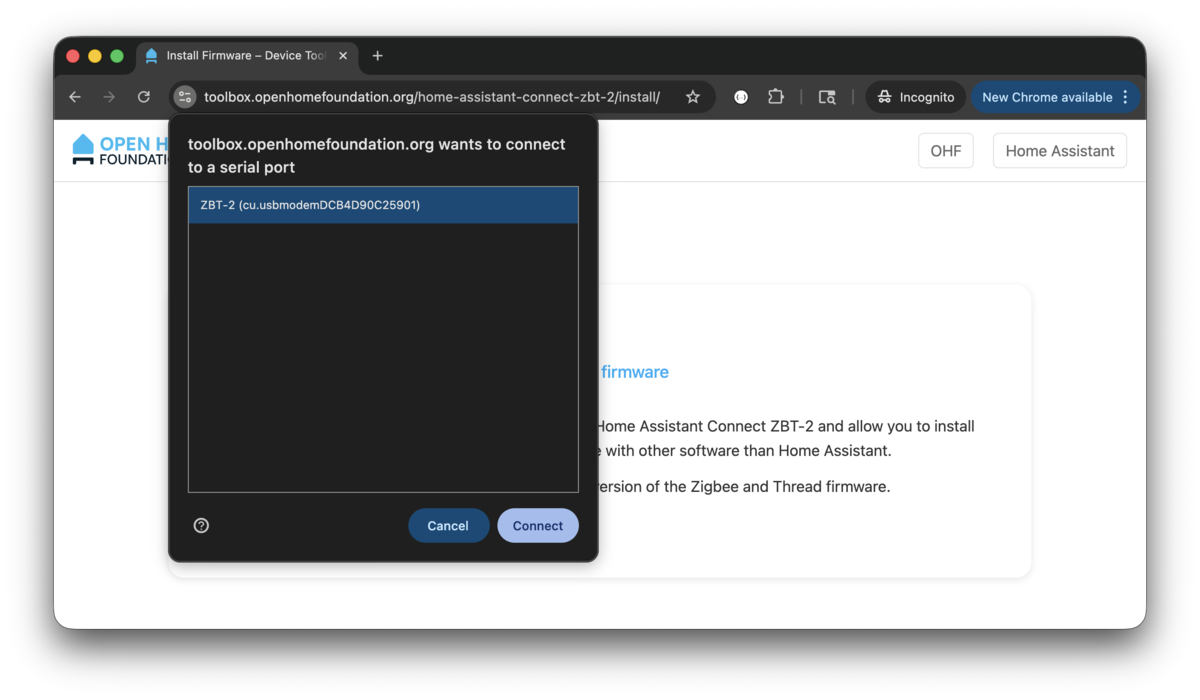
INSTALL FIRMWARE. - Select the ZBT-2 device and click
Connect. - Click
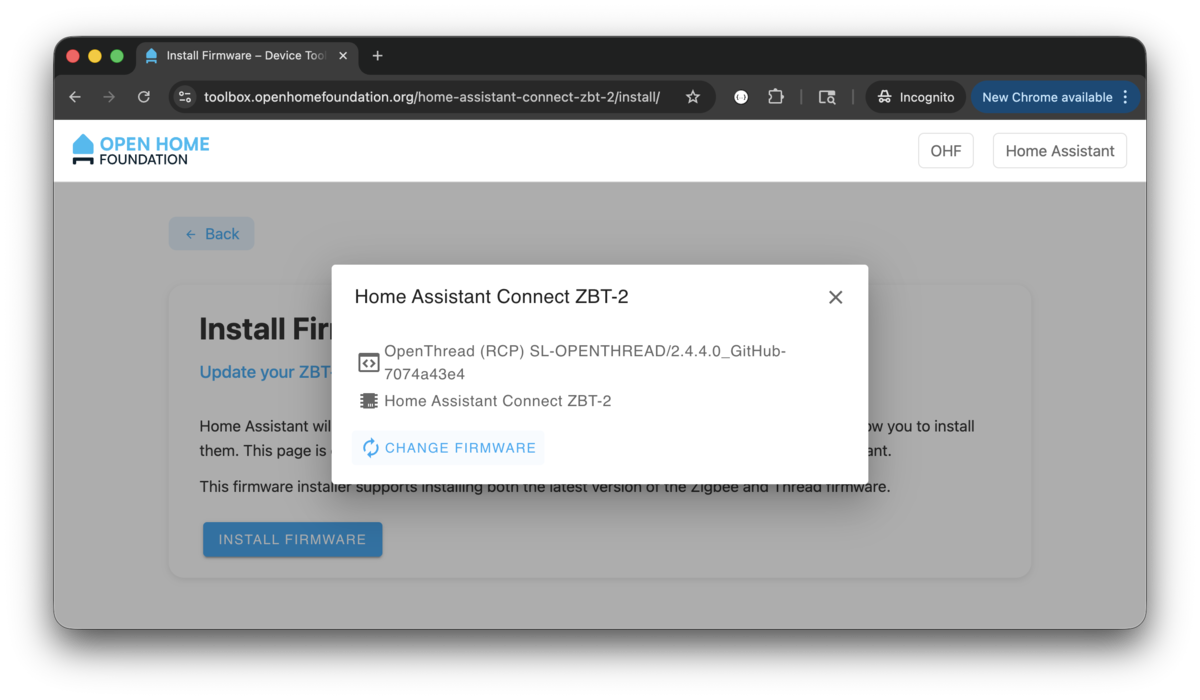
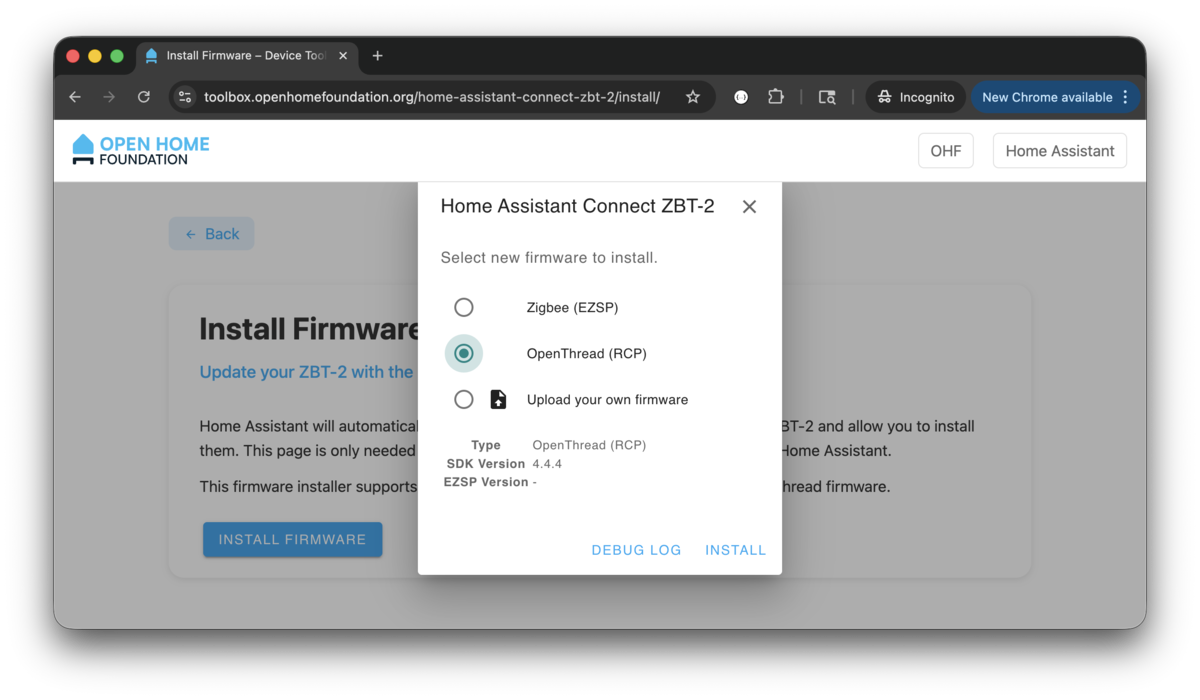
CHANGE FIRMWARE, selectOpenThread (RCP)firmware, and clickINSTALL.
Connect to Raspberry Pi
Plug the ZBT-2 into the Raspberry Pi and confirm it shows up. Use the /dev/serial/by-id/ path in the docker-compose config.
$ ls -lh /dev/serial/by-id/*
lrwxrwxrwx 1 root root 13 Jan  1 16:35 /dev/serial/by-id/usb-Nabu_Casa_ZBT-2_DCB4D90C2590-if00 -> ../../ttyACM0
Pre-Requisites
IPv6 Sysctl Settings
OTBR requires IPv6 forwarding and router advertisement settings to route Thread traffic to the LAN. Without these, accessory pairing will fail silently — devices join the Thread network but cannot reach the Matter server.
Replace br0 with your interface name (typically eth0 if you don’t have a bridge).
sudo sysctl -w net.ipv6.conf.all.forwarding=1
sudo sysctl -w net.ipv6.conf.all.disable_ipv6=0
sudo sysctl -w net.ipv6.conf.all.accept_ra=2
sudo sysctl -w net.ipv6.conf.all.accept_ra_rt_info_max_plen=64
sudo sysctl -w net.ipv6.conf.br0.forwarding=1
sudo sysctl -w net.ipv6.conf.br0.accept_ra=2
sudo sysctl -w net.ipv6.conf.br0.accept_ra_rt_info_max_plen=64
To persist across reboots, create /etc/sysctl.d/90-thread-matter.conf:
net.ipv6.conf.all.forwarding=1
net.ipv6.conf.all.disable_ipv6=0
net.ipv6.conf.all.accept_ra=2
net.ipv6.conf.all.accept_ra_rt_info_max_plen=64
net.ipv6.conf.br0.forwarding=1
net.ipv6.conf.br0.accept_ra=2
net.ipv6.conf.br0.accept_ra_rt_info_max_plen=64
Then reload:
$ sudo sysctl --system
Avahi Daemon
Ensure /etc/avahi/avahi-daemon.conf has at least the following options. This restricts mDNS to br0 (the bridged network interface) and prevents Docker virtual interfaces from leaking advertisements.
[server]
use-ipv4=yes
use-ipv6=yes
allow-interfaces=br0
deny-interfaces=docker0,veth*,br-*
ratelimit-interval-usec=1000000
ratelimit-burst=1000

[wide-area]
enable-wide-area=yes

[publish]
publish-addresses=yes
publish-hinfo=no
publish-workstation=no
publish-domain=yes
$ sudo systemctl enable avahi-daemon
$ sudo systemctl restart avahi-daemon
$ sudo systemctl status avahi-daemon
Router Advertisement Daemon
radvd is an IPv6 router advertisement service. Advertisements let devices on the local network:
- Learn the IPv6 prefix to use
- Autoconfigure their own IPv6 addresses (SLAAC)
- Discover the default router
- Learn specific routes
Replace the interface name and prefix with yours.
fd15:9ef4:1f7f:9c18::/64: ULA prefix (IPv6 equivalent of private address space like 192.168.x.x)
Notice! If radvd is stopped, accessory pairing will fail.
interface br0
{
    AdvSendAdvert on;
    MinRtrAdvInterval 3;
    MaxRtrAdvInterval 10;

    prefix fd15:9ef4:1f7f:9c18::/64
    {
        AdvOnLink on;
        AdvAutonomous on;
        AdvRouterAddr on;
    };

    route fd15:9ef4:1f7f:9c18::/64
    {
    };
};
$ sudo systemctl enable radvd
$ sudo systemctl restart radvd
$ sudo systemctl status radvd
Docker Compose
Notice! OT_INFRA_IF and PRIMARY_INTERFACE are set to br0 because I have a bridge configured on my Pi. Yours is likely eth0.
services:
  home-assistant:
    container_name: home-assistant
    image: ghcr.io/home-assistant/home-assistant:stable
    environment:
      TZ: America/Los_Angeles
    network_mode: host
    privileged: true
    restart: unless-stopped
    volumes:
      - './home-assistant/config:/config'
      - '/etc/localtime:/etc/localtime:ro'
      - '/run/dbus:/run/dbus:ro'

  matter-server:
    container_name: matter-server
    image: ghcr.io/matter-js/matterjs-server:stable
    environment:
      - PRIMARY_INTERFACE=br0
    network_mode: host
    restart: unless-stopped
    volumes:
      - './matter-server/data:/data'
      - '/run/dbus:/run/dbus:ro'

  otbr:
    container_name: otbr
    logging:
      driver: json-file
      options:
        max-size: "10m"
        max-file: "3"
    image: openthread/border-router:latest
    cap_add:
      - NET_ADMIN
    devices:
      - /dev/serial/by-id/usb-Nabu_Casa_ZBT-2_9C139EAC8D34-if00:/dev/ttyACM0
      - /dev/net/tun:/dev/net/tun
    environment:
      OT_RCP_DEVICE: spinel+hdlc+uart:///dev/ttyACM0?uart-baudrate=460800
      OT_INFRA_IF: br0
      OT_THREAD_IF: wpan0
      OT_LOG_LEVEL: 5
      OT_REST_LISTEN_ADDR: 0.0.0.0
      OT_REST_LISTEN_PORT: 8081
      OT_WEB_LISTEN_ADDR: 0.0.0.0
      OT_WEB_LISTEN_PORT: 8981
    network_mode: host
    privileged: true
    restart: unless-stopped
    volumes:
      - './otbr/data:/data'
Start the services:
$ docker compose up home-assistant otbr matter-server --remove-orphans -d
[+] Running 3/3
 ✔ Container otbr            Running
 ✔ Container matter-server   Running
 ✔ Container home-assistant  Running
Confirm container status:
$ docker compose ps --format "table{{.Name}}\t{{.Image}}\t{{.Service}}\t{{.RunningFor}}\t{{.State}}\t{{.Status}}"
NAME             IMAGE                                           SERVICE          CREATED          STATE     STATUS
home-assistant   ghcr.io/home-assistant/home-assistant:stable    home-assistant   49 seconds ago   running   Up 48 seconds
matter-server    ghcr.io/matter-js/matterjs-server:stable        matter-server    49 seconds ago   running   Up 47 seconds (healthy)
otbr             openthread/border-router:latest                 otbr             49 seconds ago   running   Up 48 seconds
Notice! OT_LOG_LEVEL: 7 (debug) logs every packet. Combined with Docker’s default unrotated json-file logs, it filled my 10G Docker disk (2.7G of OTBR logs in two days). Use 5 (notice), and cap log size with the logging block above or globally in /etc/docker/daemon.json.
{
  "log-driver": "json-file",
  "log-opts": {
    "max-size": "10m",
    "max-file": "3"
  }
}
The global setting needs sudo systemctl restart docker and only applies to containers created afterwards.
Add Home Assistant Integrations
Log into the Home Assistant admin portal and add the following integrations in order:
- Thread
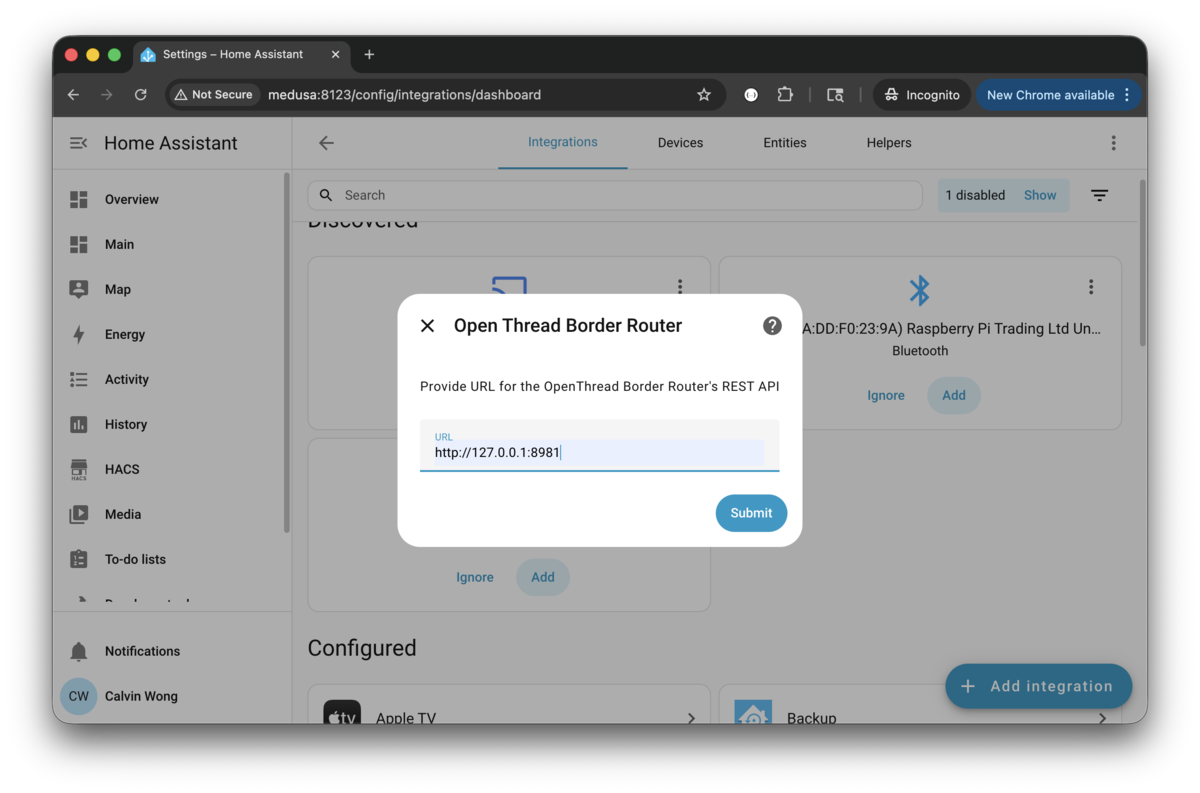
- Open Thread Border Router — enter the REST API URL:
http://127.0.0.1:8081 - Matter
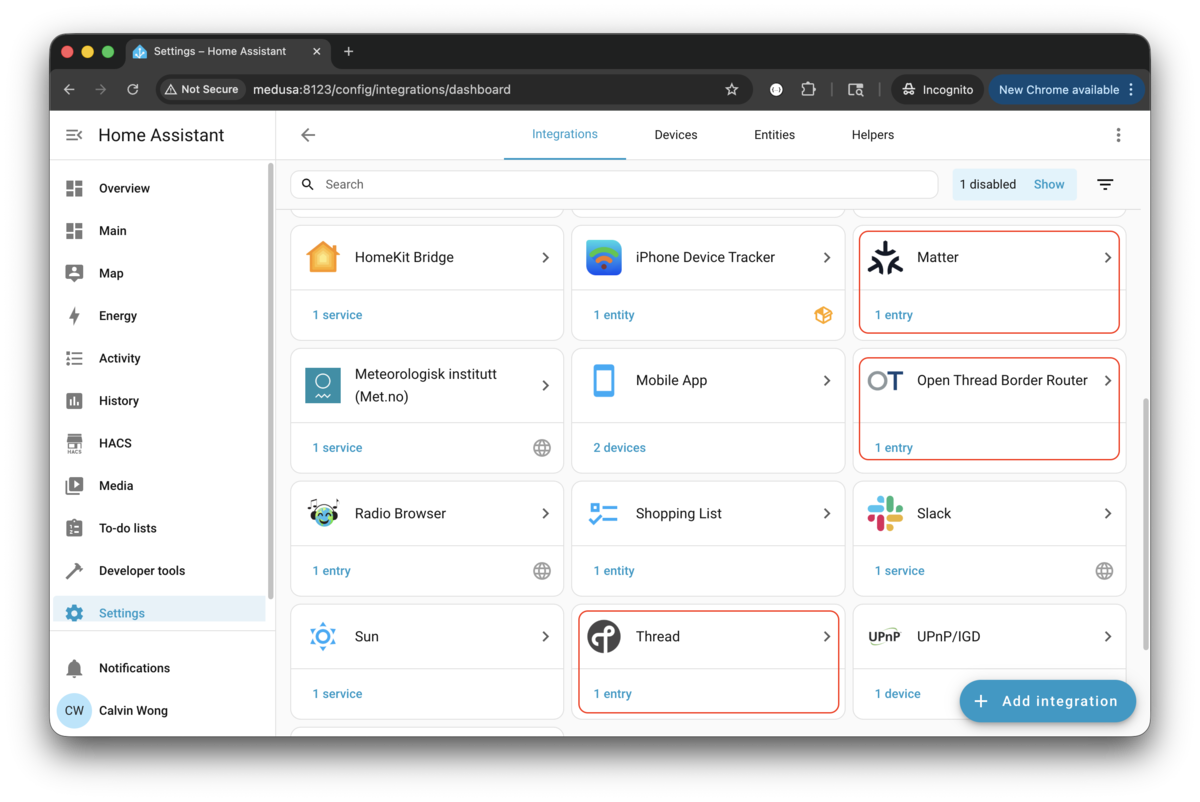
Restart all services after adding integrations:
$ docker compose restart home-assistant otbr matter-server
[+] Restarting 3/3
 ✔ Container home-assistant  Started
 ✔ Container otbr            Started
 ✔ Container matter-server   Started
Add Matter Devices via Home Assistant App
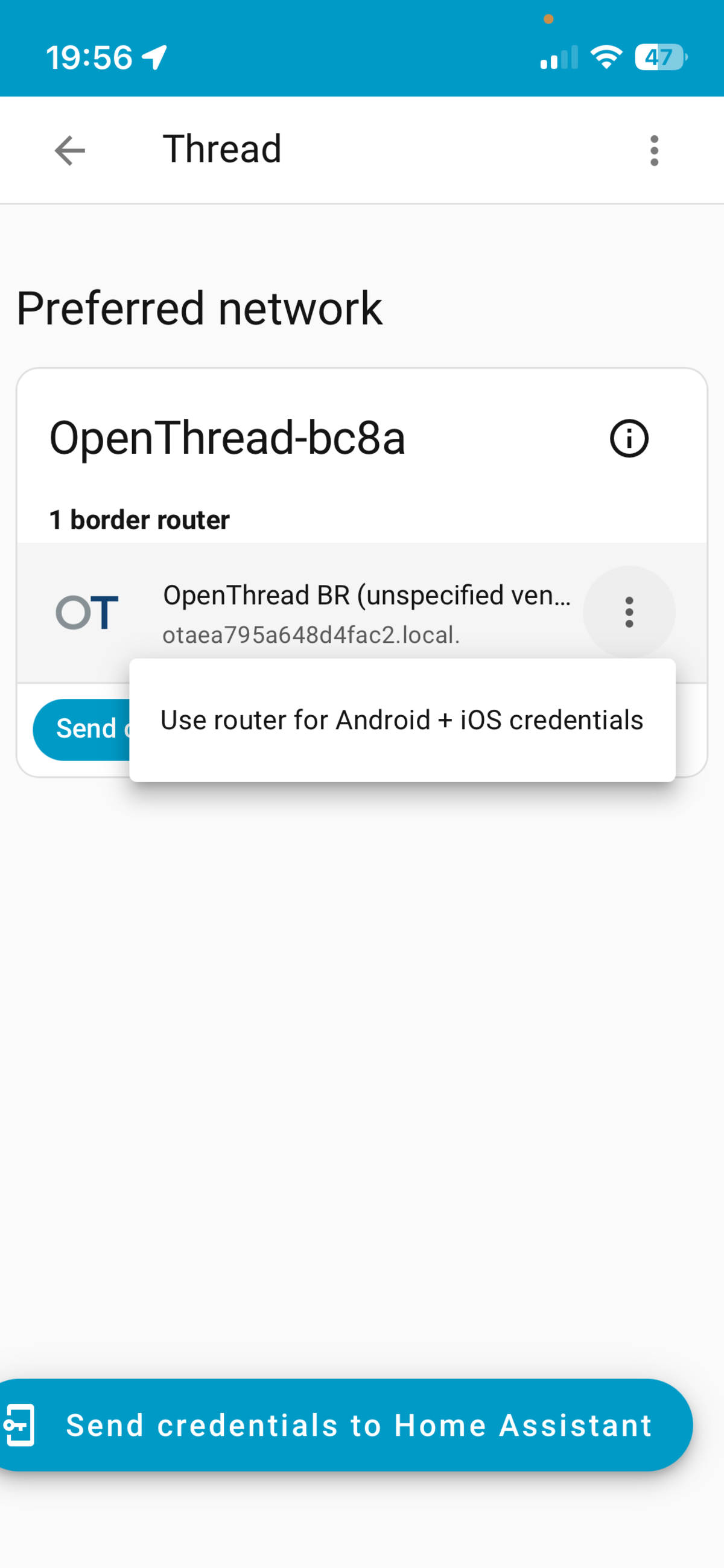
In the Home Assistant app on your phone:
- Under the Thread integration, find
border router, tap the 3-dots, and selectUse router for Android + iOS credentials, then tapSend credentials to phone. - Go to Settings › Companion app › Debugging › Thread, find the network name, and click
Transfer to Home Assistantto add the credential to Apple Keychain. - Add Matter devices via Settings › Devices & Services › Add Integration › Matter.
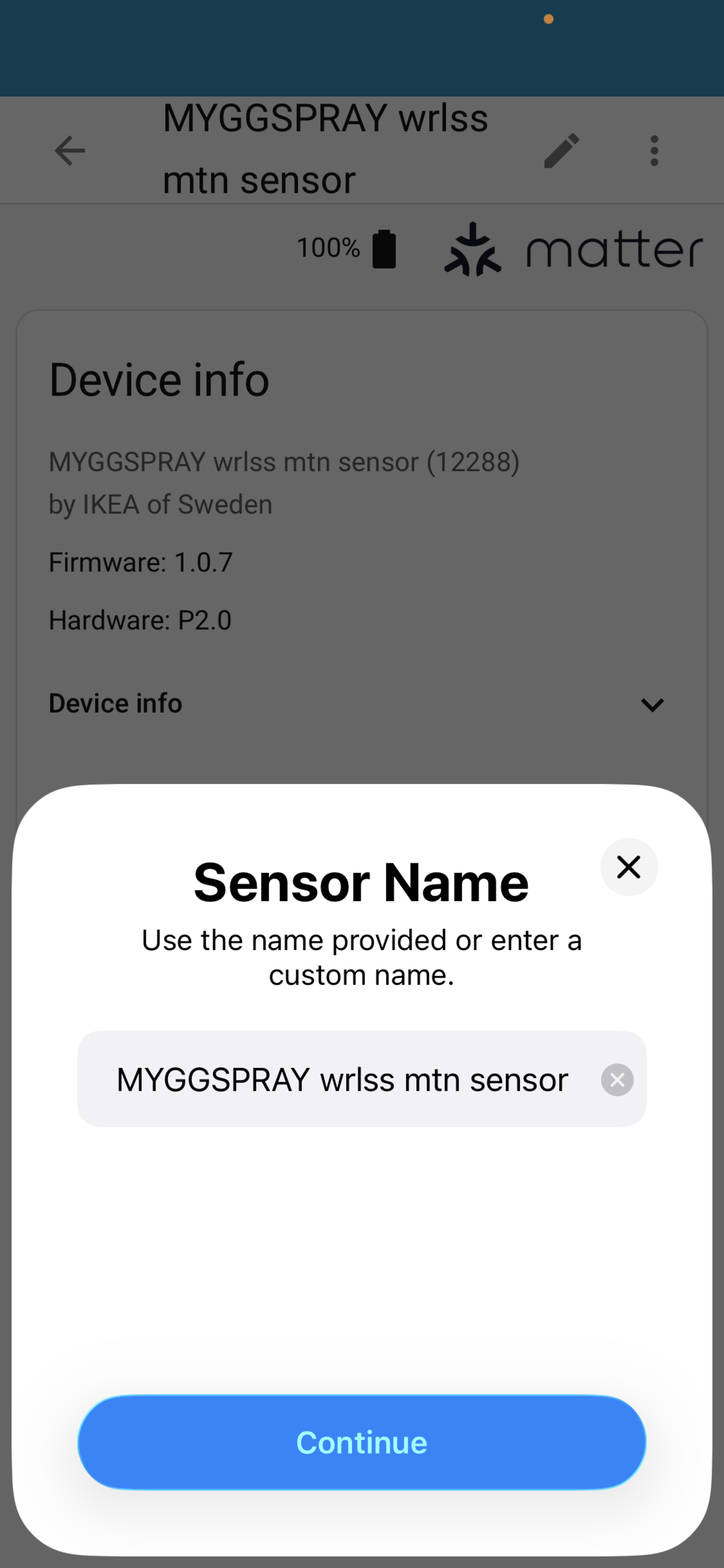
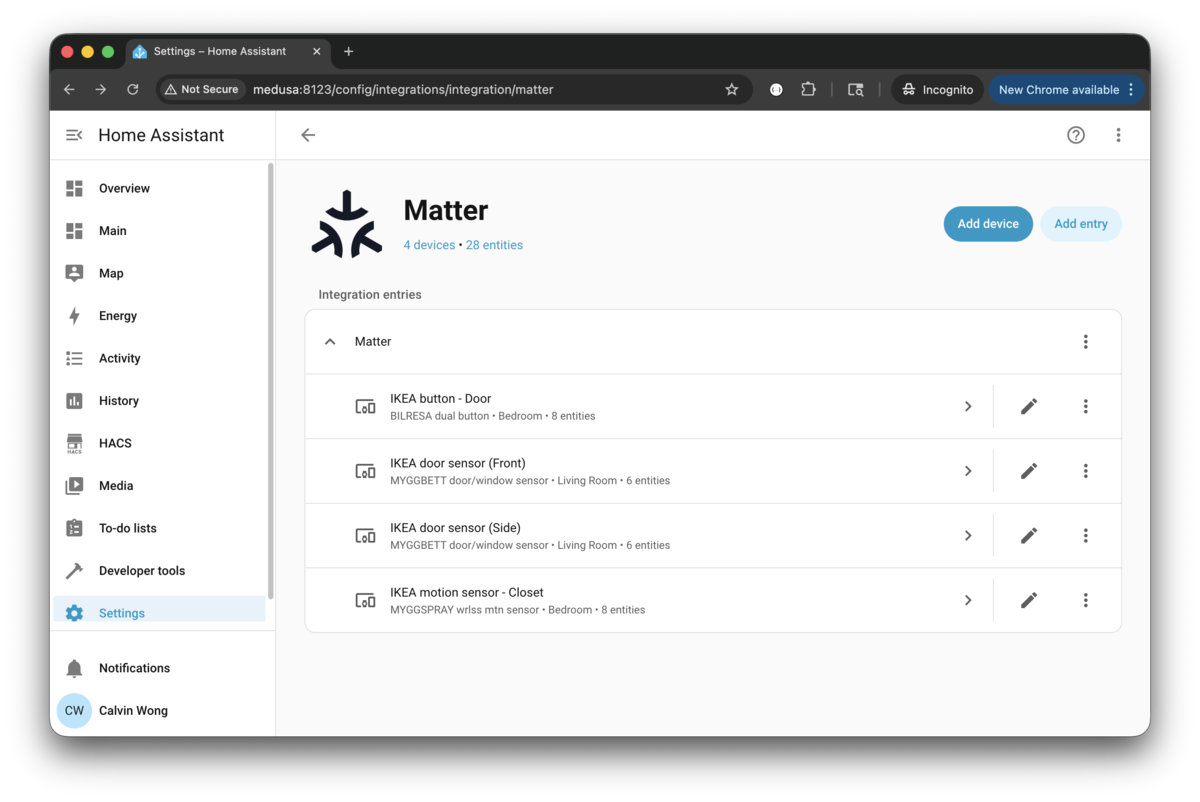
Confirm devices appear under the Matter integration:
Extra Credit
Home Assistant Cloud provides a secure remote connection, but to avoid the monthly fee I use DuckDNS and Caddy instead.
DuckDNS
Create an account at DuckDNS and pick a subdomain. Store the TOKEN in /usr/local/etc/docker/duckdns.env.
  duckdns:
    container_name: duckdns
    image: lscr.io/linuxserver/duckdns:latest
    env_file:
      - /usr/local/etc/docker/duckdns.env
    environment:
      TZ: America/Los_Angeles
      SUBDOMAINS: sub-domain-you-picked-from-duckdns
    network_mode: host
    restart: unless-stopped
Port Forwarding
Forward ports 80 and 443 on your router to the Raspberry Pi. Caddy uses these for ACME challenges and TLS traffic.
Reverse Proxy and HTTPS
  caddy:
    container_name: caddy
    image: caddy:2
    network_mode: host
    restart: unless-stopped
    volumes:
      - './caddy/etc-caddy/Caddyfile:/etc/caddy/Caddyfile'
      - './caddy/data:/data'
      - './caddy/config:/config'
Minimal Caddyfile:
##################################
# LAN HTTPS (.local)
##################################

https://home-assistant.local {
    reverse_proxy 127.0.0.1:8123 {
        transport http
    }
    encode gzip
}

##################################
# External HTTPS (DuckDNS)
##################################

home-assistant.sub-domain-you-picked-from-duckdns.duckdns.org {
    reverse_proxy 127.0.0.1:8123 {
        transport http
    }
    encode gzip
}

##################################
# Optional global HTTP -> HTTPS catch-all
##################################

http:// {
    redir https://{host}{uri}
}
Troubleshooting
When Matter devices show Unavailable, follow these steps to restore them.
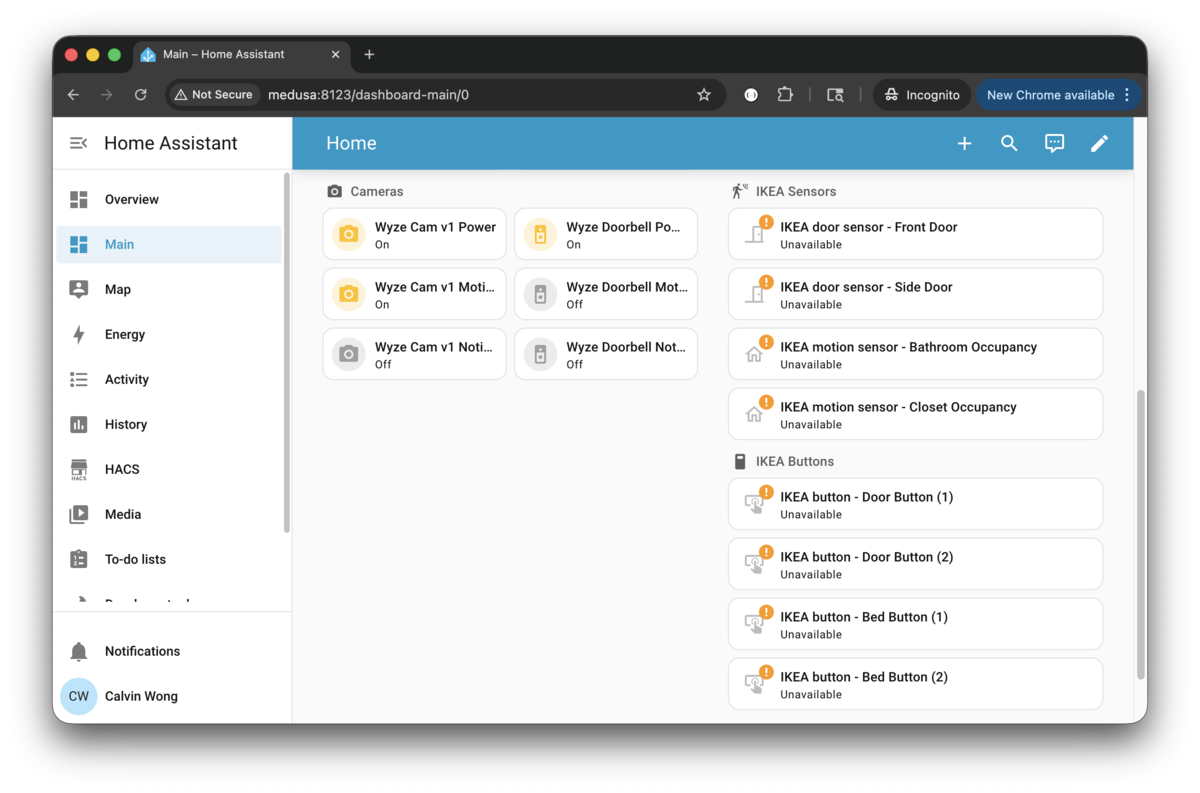
1) In Home Assistant, go to Devices & Services and delete the Thread and Open Thread Border Router integrations.
2) Stop the containers.
$ docker compose down home-assistant otbr matter-server --remove-orphans
[+] Running 3/3
 ✔ Container home-assistant  Removed
 ✔ Container matter-server   Removed
 ✔ Container otbr            Removed
3) Start the containers again.
$ docker compose up home-assistant otbr matter-server --remove-orphans -d
[+] Running 3/3
 ✔ Container otbr            Running
 ✔ Container matter-server   Running
 ✔ Container home-assistant  Running
4) Wait 15 seconds.
5) Verify OTBR status — it should show disabled with no active dataset yet.
$ docker compose exec -it otbr ot-ctl state
disabled
Done

$ docker compose exec -it otbr ot-ctl dataset active
Error 23: NotFound
6) Re-add Thread and Open Thread Border Router integrations — see Add Home Assistant Integrations.
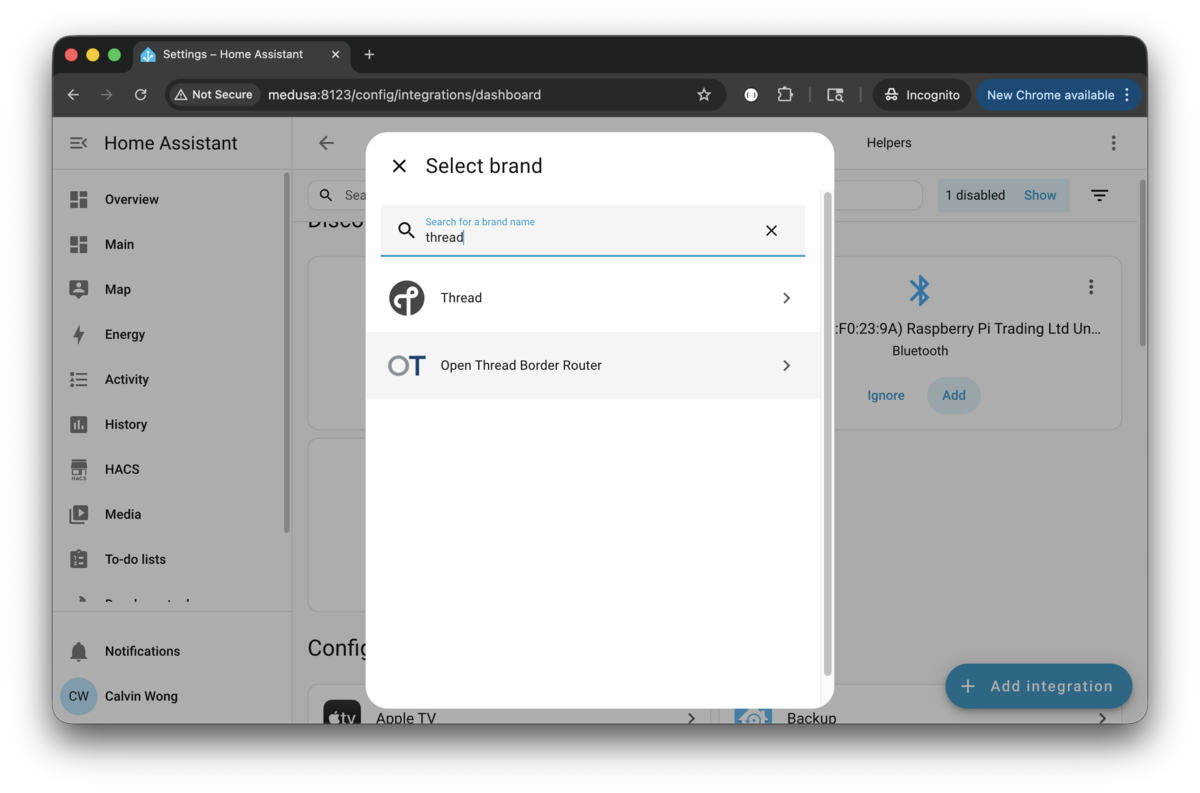
7) Confirm OTBR status — it should now show leader with an active dataset.
$ docker compose exec -it otbr ot-ctl state
leader
Done

$ docker compose exec -it otbr ot-ctl dataset active
Active Timestamp: 1
Channel: 26
Wake-up Channel: 16
Channel Mask: 0x07fff800
Ext PAN ID: 5b5ee99d71511221
Mesh Local Prefix: fdaa:a2a2:eacd:7d2d::/64
Network Key: febd7f33eee11c8805799a6daec7c892
Network Name: OpenThread-bc8a
PAN ID: 0xbc8a
PSKc: 0e9238d5939cd5597ef054de6bee7c49
Security Policy: 672 onrc 0
Done
8) Re-configure the phone app — see Add Matter Devices via Home Assistant App.
Factory Reset
Use this when the border router is in a broken state and you cannot access or pair any accessories. This resets all OpenThread network state and clears HA’s stored Thread datasets.
docker compose stop home-assistant
sudo rm -f home-assistant/config/.storage/thread.datasets

docker compose exec otbr ot-ctl factoryreset
sleep 5
docker compose exec otbr ot-ctl ifconfig up
sleep 5
docker compose exec otbr ot-ctl dataset init new
sleep 5
docker compose exec otbr ot-ctl dataset commit active
sleep 5
docker compose exec otbr ot-ctl thread start
sleep 5
docker compose exec otbr ot-ctl br enable
sleep 5
docker compose exec otbr ot-ctl state

avahi-browse -rt _meshcop._udp

docker compose start home-assistant

docker compose stop home-assistant otbr

sudo systemctl stop avahi-daemon
sudo rm -rf /var/run/avahi-daemon/*
sudo systemctl start avahi-daemon

docker compose start otbr

# wait 20sec

avahi-browse -rt _meshcop._udp

docker compose start home-assistant

# wait 2-3min — you should be able to "Send credentials to phone" and pair accessories